
Casting lets the Android app send playback to a compatible receiver. Your phone remains the way to choose the broadcast. Compatibility depends on the receiver, network and stream source.
Check the connection first
Use a compatible casting receiver and follow its manufacturer’s setup instructions. For Google Cast devices, the phone and receiver need to be on the same Wi-Fi network. Guest networks may isolate devices from each other.
Start on your phone
The official app listing confirms casting support. Available controls can differ by app version and source.
- Check that the receiver is switched on and connected to the correct network.
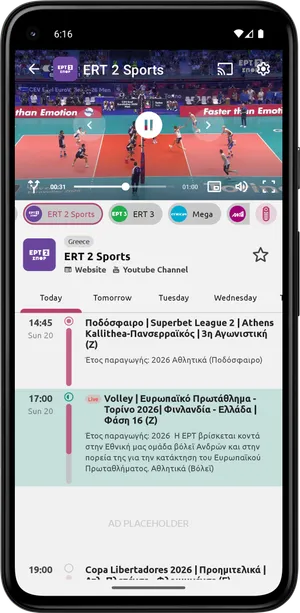
- Open an available channel in the Android app and first confirm it plays on your phone.
- Use the available casting control in the player and select your compatible receiver if it appears.
- Allow playback to start. To disconnect, use the casting session’s disconnect control.
Your television does not appear?
Check that both devices use the same network, that the receiver has completed setup and that you are not using an isolated guest network. Restart the receiver if needed. Having Wi-Fi on a television does not by itself mean it supports this casting method.
It plays on your phone, but not on the TV?
Try another available broadcast to distinguish a source problem from a connection problem. Source restrictions, video formats and receiver capabilities can affect playback. Not every source necessarily works with every receiver.
Alternative: install on Android TV
If you have a compatible Android TV, you can install the app on the television and use its remote. This is a separate option from casting and does not require starting each broadcast from your phone.
Download for Android · Contact
Sources & availability
Capabilities are based on the official app listing. Steps and menu names may differ by version and device. Google Play · Google Cast
Screenshots show version 2.1.6, confirmed by the developer.
Content checked:
App screenshots · not a live broadcast